
Updated September 2, 2025
How to Turn Off Vanish Mode on Instagram (Step-by-Step Guide)
Key Takeaways
- Vanish Mode makes messages disappear — turn it off to keep chats saved.
- Disable by swiping up in a chat or toggling it off in chat settings.
- Troubleshoot if missing toggle: update the app, clear cache, reinstall.
What is Vanish Mode on Instagram?
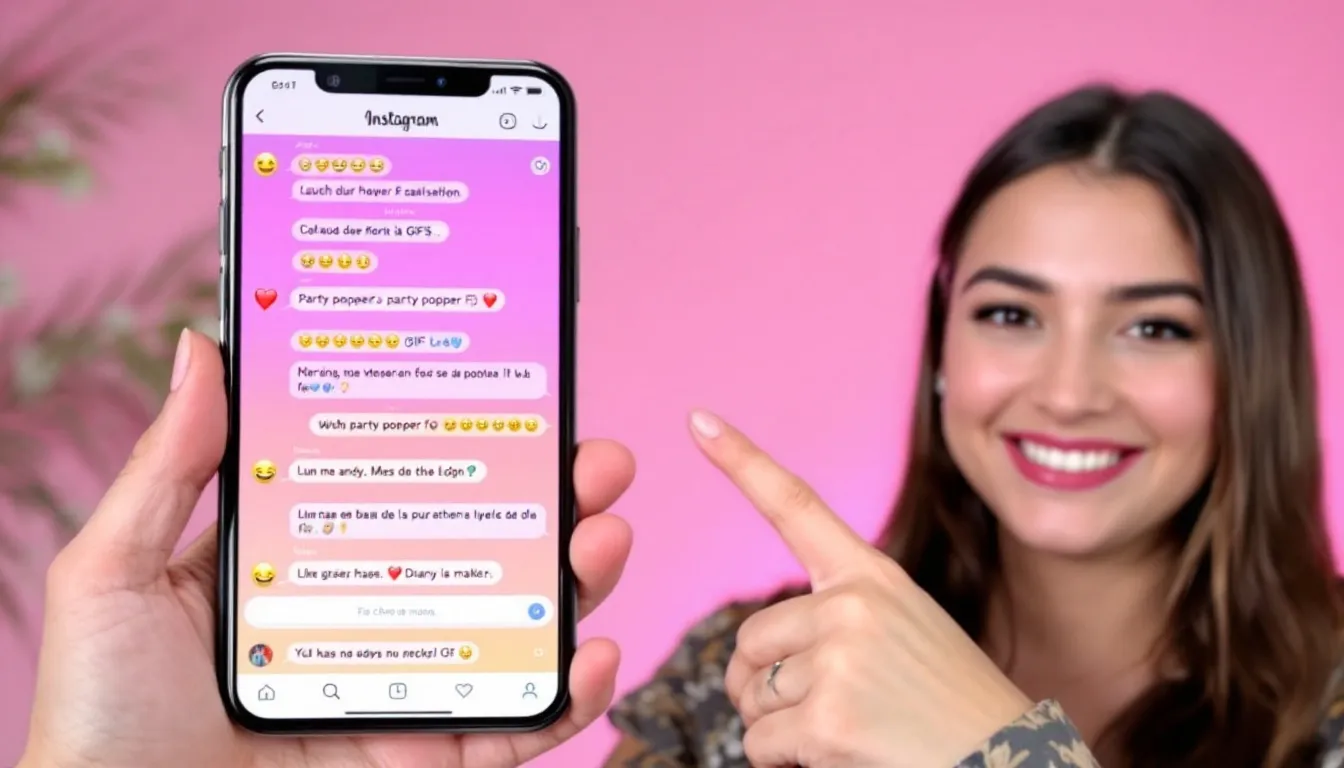
Vanish Mode is a feature in Instagram DMs that makes new messages disappear after they’re seen. Great for quick chats, but many users prefer keeping messages.
Why turn it off?
- You want a record of conversations for future reference.
- You’re annoyed by disappearing messages.
- You need saved chats for work or customer support.
Step-by-Step: Turn Off Vanish Mode
- Open Instagram and tap the DM (Messages) icon.
- Select the conversation that’s currently in Vanish Mode.
- Swipe up from the bottom of the chat until you see “Vanish Mode off.”
- If swiping doesn’t work: tap the chat name/info → toggle Vanish Mode off.
- Send a test message to confirm it stays after leaving the chat.
Troubleshooting if Vanish Mode Won’t Turn Off
- Update Instagram: App Store / Google Play → Update → Relaunch.
- Check region/account: Features roll out gradually; log out/in.
- Clear cache (Android): Settings → Apps → Instagram → Storage → Clear cache.
- Reinstall Instagram: Back up drafts, reinstall app.
Privacy & Safety Notes
- Exiting Vanish Mode affects only new messages going forward.
- Users can still unsend or delete their own messages.
- Instagram may notify if you screenshot ephemeral chats.
Related Instagram Guides
FAQs
Why can’t I turn off vanish mode?
Check if your app is updated. Some regions/accounts don’t get it immediately. Try logging out and back in.
Does vanish mode delete old chats?
No, it only affects new messages after it’s turned on. Turning it off won’t restore deleted ones.
Can I use vanish mode in group chats?
No, vanish mode works only in one-on-one conversations.