
Instagram has become integral to digital marketing strategies, with business accounts providing unique tools and analytics. However, users may sometimes need to revert their business accounts back to personal profiles so they must learn how to turn off business account on Instagram. Changing your Instagram profile from business to personal is a straightforward process and may be necessary for various reasons, ranging from a change in business status to a desire for more privacy.
Reverting to a personal account can change your interaction with the platform, stripping away some business features and potentially reducing complexity and expectations. The process involves navigating through Instagram settings and making a few simple selections. Once you’ve decided to switch, it’s important to understand what functionality you might lose access to and how this decision could affect your online presence.
Key Takeaways
Table of Contents
- Switching from a business to a personal account is user-friendly.
- Certain features exclusive to business accounts will be lost when switching.
- The change can be beneficial depending on your needs and privacy concerns.
Understanding Business Accounts on Instagram
Instagram Business Accounts offer distinct benefits tailored for brands and organizations. They provide insights into followers and post-performance, contact information for the business, and the ability to promote posts as ads.
Features of Business Accounts:
- Insights: Analytic tools allow users to track engagement and impressions of posts and stories.
- Contact Information: Business accounts can display contact buttons (call, email, or directions).
- Promotional Tools: Businesses can turn posts into ads to reach a targeted audience.
Key Distinctions:
- Profile Display: Business profiles feature a category label, reflecting the type of business.
- Messaging: Business accounts can set up quick replies for commonly asked questions.
Considerations When Using a Business Account:
- Engagement: The public can view Response rates and times, emphasizing the need for active management.
- Algorithm Influence: Professional accounts’ visibility may differ from personal accounts due to Instagram’s algorithm.
To switch to a Business Account, users need to:
- Navigate to their profile settings.
- Tap Account and select Switch to Professional Account.
- Follow the prompts to connect to a Facebook Page, choose a category, and fill out contact details.
Businesses leverage these accounts to expand their reach and interact more effectively with their platform audience.
Navigating Instagram Settings
Navigating Instagram’s settings may initially appear daunting for a user intending to change their business account to a personal one. However, approaching this process methodically simplifies the task.
Users begin by tapping the profile icon at the bottom of the app, which guides them to their profile. Subsequently, they must tap the three horizontal lines in the screen’s upper right corner. This action reveals a menu where Settings occupies the first slot and should be selected.
Within Settings, users must select Account, which furnishes a range of options related to their Instagram account management. Here, users locate the option labeled Switch Account Type.
Instagram may prompt users with questions or warnings to ensure they understand the implications of changing their account type. Users must review these thoroughly before proceeding.
To assist users in this task, the following simplified steps encapsulate the process:
- Tap the profile icon to access the user profile.
- Tap the three horizontal lines and select Settings.
- Within Settings, choose Account.
- Select Switch Account Type.
Through the methodical traversal of Instagram’s settings, users can confidently alternate between different account types, tailoring their social media presence to their current objectives.
Switching Back to a Personal Account
Instagram users who wish to revert their account from a business profile to a personal one must follow specific steps within the app settings. This process is straightforward and helps regain the simplicity and privacy of a personal account.
Accessing Account Settings
First, one must navigate their Instagram profile and locate the Settings option. This is typically found by tapping the menu icon—represented by three horizontal lines—in the top right corner of the screen. Once the menu expands, the Settings option should be visible and available for selection.
Changing Account Type
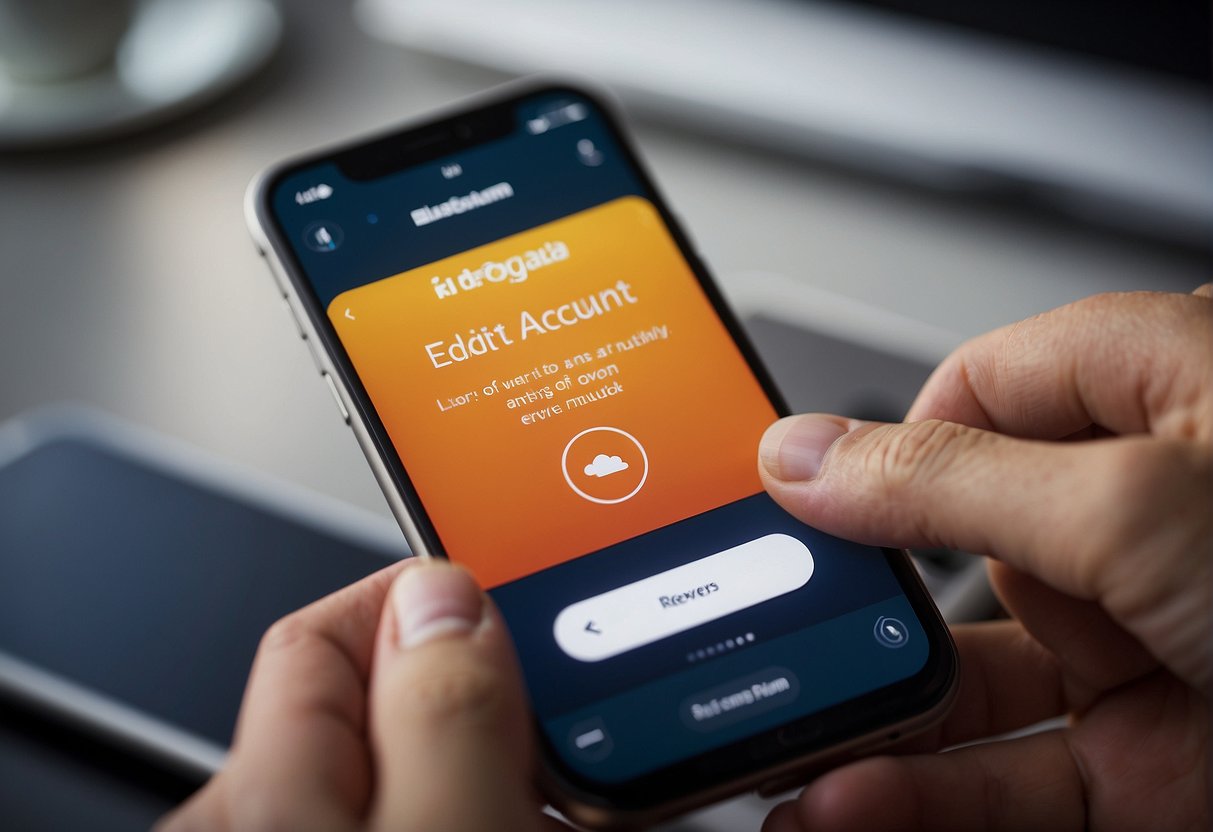
Within the Settings menu is a subsection titled Account, where users can find the Switch Account Type option. Selecting this will present two options; the user must tap on Switch to Personal Account. Users are usually asked to confirm their choice to ensure they want to proceed with changing the account type. After confirmation, the transition to a personal account will be completed.
Confirming Account Changes
Ensure the changes have been successfully implemented after changing an Instagram account from a business to a personal one. Instagram does not immediately notify users once the account type is switched, so manual confirmation is necessary.
To confirm the account changes, follow these steps:
- Visit Your Profile: Tap the profile icon at the bottom right of the Instagram interface to view your profile.
- Access Settings: Tap on the three horizontal lines or the gear icon, then select ‘Settings’ to enter the app’s settings menu.
- Check Account Type: Scroll down to ‘Account’ and tap to check the account type. If the change succeeds, it should no longer show business features and resemble a personal account.
It’s also advisable to review the contact information:
- Contact Information: Ensure that business contact information is no longer publicly displayed.
Lastly, it may be beneficial to check the privacy settings to reaffirm that the account has been reverted:
- Privacy Settings: Navigate to ‘Privacy’ and review the settings to ensure they align with a personal account’s options, like private account toggles.
If any business features remain or the settings have not reverted to those typical of a personal account, it suggests that the change may not have been successful. In such an instance, one should repeat the process or consult Instagram’s help resources, such as their Business Account Guide, for further assistance.
Tips Before You Switch
Important considerations must be made to ensure a smooth transition when switching from a business to a personal Instagram account.
Backing Up Data
Before making the switch, it is crucial to back up any significant data that Instagram provides to business accounts because once the account type is changed, all insights data will be lost. This includes metrics on post-performance, audience demographics, and profile interactions. Users can record this data manually or use third-party tools to export it. For more detailed guidance, the article on Guiding Tech explains the implications of losing business insights data upon switching.
Reviewing Business Features
Business accounts offer several advanced features that are not available to personal accounts. Users should review these features—which include promotional tools, the ability to add contact information and CTA buttons to a profile, and more—when considering the transition. These features, as outlined on Geekflare, are designed to help businesses grow by reaching a wider audience and may influence the decision to switch account types.
Frequently Asked Questions
This section covers the essentials for managing the transition from a business account to a personal account on Instagram. It provides clear instructions to handle specific scenarios that may arise during the process.
What are the steps to switch from a business account to a personal account on Instagram?
To switch from a business account to a personal account, one must go to their Instagram profile, select ‘Settings,’ then ‘Account,’ and ‘Switch to Personal Account.’ It’s essential to follow the on-screen instructions to confirm this change.
Can I change my Instagram business account to a private account, and if so, how?
Yes, a business account can be converted to a private account on Instagram. First, the user needs to convert the business account into a personal account following the steps above. Afterward, they can go to Settings,’ then Privacy,’ and toggle on ‘Private Account.’
What should I do if I can’t revert my business profile to a personal account on Instagram?
If difficulties arise when attempting to revert a business profile to a personal one, check if the Instagram app is updated. If issues persist, they can seek assistance through Instagram’s Help Center.
I use an iPhone; how can I deactivate my Instagram business account?
iPhone users can deactivate their Instagram business account by opening the Instagram app, tapping the profile icon, selecting ‘Settings,’ tapping ‘Account,’ and choosing ‘Switch to Personal Account.’
How can Android users change their business account to a personal Instagram account?
Android users should tap on their profile picture, select ‘Settings,’ tap ‘Account,’ and then select ‘Switch to Personal Account’ to change their business profile to a personal account.
How is Creator mode turned off on Instagram, and is it similar to disabling a business account?
Creator mode on Instagram can be turned off by going to one’s profile, selecting ‘Settings,’ tapping ‘Account,’ and then choosing ‘Switch to Personal Account.’ This process deactivates the additional features of Creator mode, similar to disabling a business account.